Perks of Registration
Your Registration and membership is free and connects you to :
- 24/7 access to Discussion Forums like
- Channels
- Orchestration
- Data
- Braze Learning
- Events
- Register for in-person or virtual events, and participate in AMAs to connect with Braze Product Experts
- About Braze Learning
- Follow the Category to receive automated email notifications of new course launches and certification promotions
- Bonfire Job Board
- Stay connected to a network of Braze experts and open roles seeking Braze skills and expertise
I am a Braze Dashboard User (Recommended)
1. Log in to your Braze Dashboard

2. Select the Community Icon in the Dashboard Navigation Bar

3. Select Sign in to Braze Bonfire Community

4. Select the acknowledgement of the privacy policy and continue to link your Dashboard user account with your new Bonfire Community account. Please note: this step is only required the first time you link your Dashboard account to Bonfire.

5. Add the required information for your Community account. Please note: this step is only required the first time you link your Dashboard account to Bonfire. You will now be logged into Braze Bonfire Community.

Merged vs New Accounts
Your Setup | What to Expect | Next Steps |
|---|
Same email address on both accounts | Your existing Bonfire posts link automatically to your Braze ID logged in Community account | None required. |
Different email address | A new Bonfire account is created upon login. | To merge your old posts, email community@braze.com from both email addresses to confirm ownership. |
LinkedIn Login (same email address as Braze Dashboard) | Your existing Bonfire posts link automatically to your Braze ID logged in Community account | None required. |
LinkedIn Login (different email address as Braze Dashboard) | A new Bonfire account is created upon login. | To merge your old posts, email community@braze.com from both email addresses to confirm ownership. |
I do not have access to a Braze Dashboard
Step 1: From the Navigation Bar, select Register from the Community Homepage.

Step 2: Please complete the required fields on the registration page, and ensure you have reviewed and agreed to the terms of service. Then, select the "Sign Up" button.

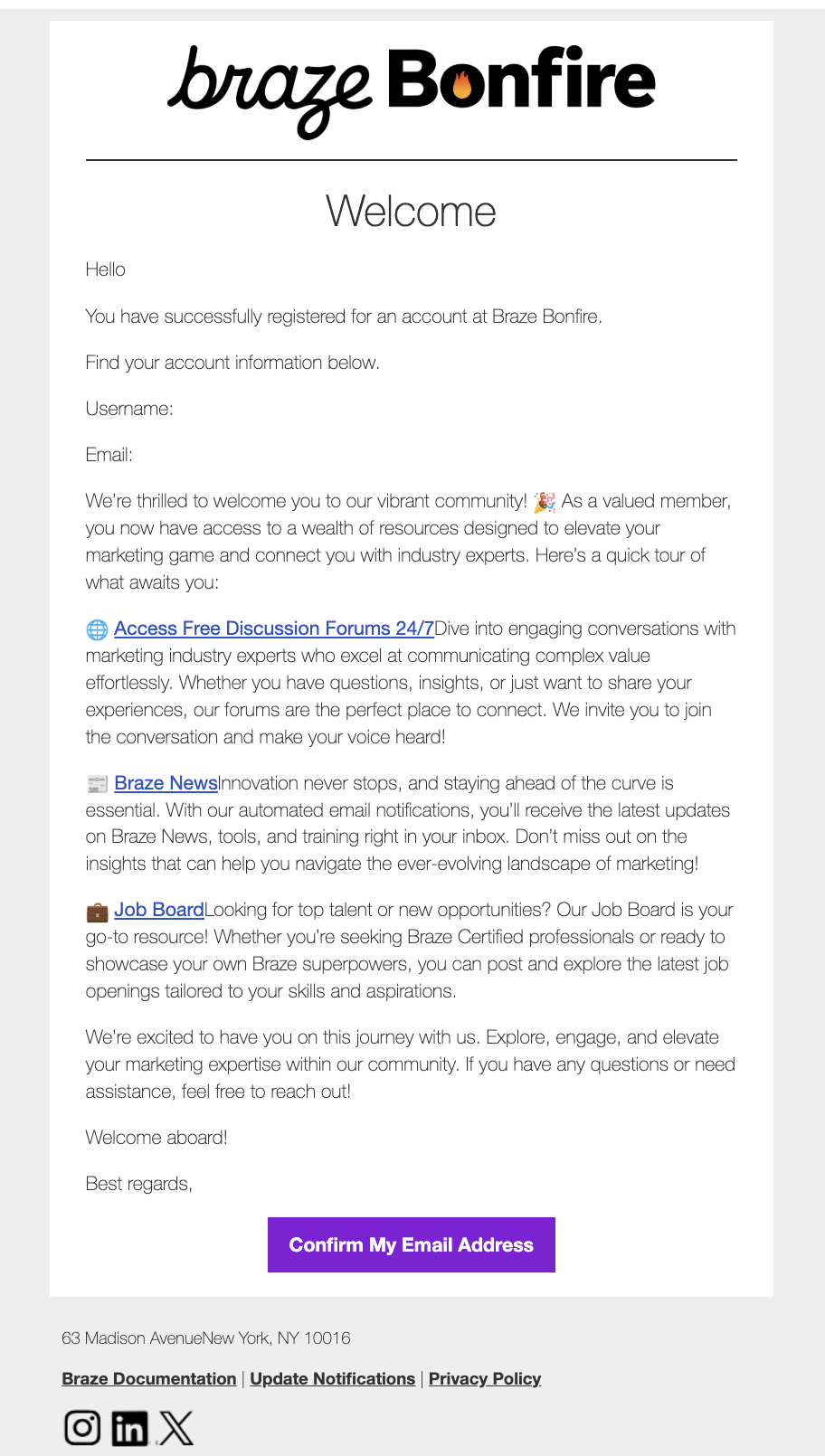
Step 3: Please verify your email address by selecting the button labelled "Confirm My Email Address" which is located in the Welcome email sent to your email associated with your Braze Bonfire Community Account.
Note: Verification is required to allow you to post in the Community.
Forgotten Bonfire Password
Step 1: From the Navigation Bar, select Sign In from the Community Homepage.
Step 2: From the Sign In page, select the hyperlink "Forgot" located following the password field

Step 3: Enter your email associated with your existing Community Account and complete the Security Check, reCAPTCHA, then select "Request new password" button to continue

Step 4: Access your email associated with your existing Community Account and select the "Change My Password" button from the Rest Your Password Email.

Step 5: Enter and confirm your new password. Select the "Save your password" button
Register/Sign In with LinkedIn
Step 1: From the Navigation Bar, select Sign In from the Community Homepage.
Step 2: Select Sign In with LinkedIn Connect button
Step 3: Fill in Email or Phone and Password and select "Sign In"button

Step 4: Fill the required fields and select "Connect" button
